
How to Access the PetalHost Customer Portal
The PetalHost Customer Portal allows you to manage your hosting services, domains, invoices, and support tickets in one place.
Portal login URL
Customer Portal URL: https://petalhost.com/members/
Open this link in any modern web browser (such as Chrome, Firefox, Edge, or Safari) to access the login page.
Log in to your PetalHost account
- Open your preferred web browser.
Go to https://petalhost.com/members/
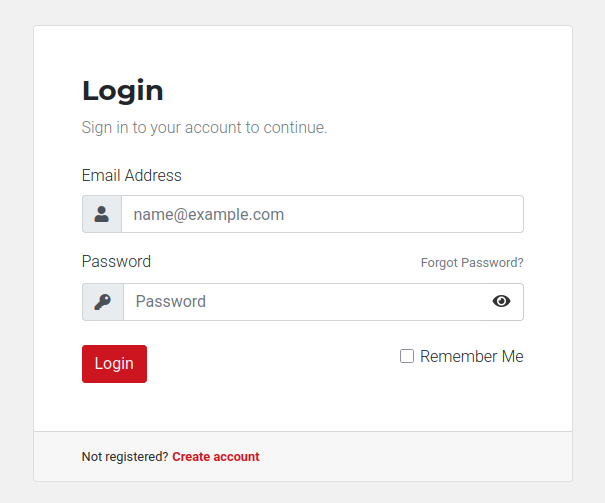
- On the login form, enter:
- Email Address – The email address registered with your PetalHost account.
- Password – Your PetalHost account password.
- (Optional) Tick the Remember Me checkbox if you want your browser to remember your login details on this device.
- Click the Login button.
After a successful login, you will be taken to the Client Area Dashboard, where you can view your active services, check and pay invoices, open support tickets, and update account details.
If you forgot your password
If you cannot log in because you do not remember your password, follow these steps to reset it.
- Visit https://petalhost.com/members/ .
- Click the Forgot Password? link below the login form.
- Enter the email address associated with your PetalHost account and submit the form.
- Check your email inbox for a password reset message and follow the link inside to create a new password.
For security reasons, the reset link is only sent to the registered email address on your account.
Security best practices
- Always log out of the Customer Portal when using a shared or public computer.
- Do not share your login email or password with anyone.
- Use a strong, unique password and update it periodically.
- Consider using a password manager to store your credentials securely.